September 7, 2026 · Shrey
- Excel to CRM migration
- Google Sheets CRM
- Spreadsheet CRM migration
- Custom CRM data migration
- CRM for small business
- SaaSCRM
How to migrate an Excel or Google Sheets CRM into a real CRM
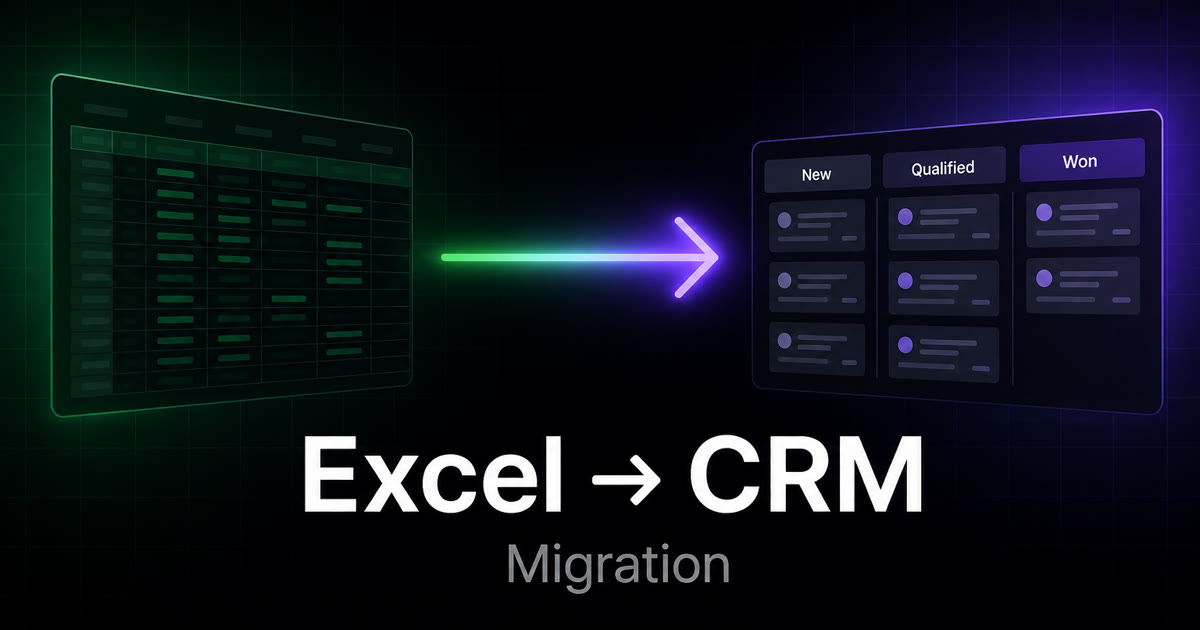
Excel to CRM migration for small business: how to migrate an Excel spreadsheet to CRM or Google Sheets CRM, map fields, deduplicate, and roll out a custom CRM without importing chaos.
To migrate an Excel spreadsheet to CRM or a Google Sheets CRM successfully, first define the records and workflows you actually need, then clean and map the data before importing it into a CRM with clear ownership, permissions, stages, and follow-up rules.
The safest Excel to CRM migration is not “upload every column.” It is:
Audit → clean → map → import → verify → train → retire the spreadsheet gradually
A spreadsheet CRM migration should improve how the team works, not simply move the same chaos into a more expensive interface. If you are still deciding why to leave the sheet, start with why your business needs a CRM. This guide is the practical next step: data mapping, deduplication, cost, and rollout.
Key takeaways
- Excel to CRM migration fails when you import every column. Start with an inventory, then a field map.
- A Google Sheets CRM and an Excel tracker both break on duplicates, missing owners, and no activity timeline.
- Separate companies, contacts, leads, deals, tasks, and invoices — do not dump mixed rows into one contacts table.
- SaaSCRM can be the frontend for the migrated workspace; custom CRM data migration is the safer route when several sheets must merge.
- Path: field map → test batch → AI CRM Builder → template or custom build.
Why spreadsheets stop working as a CRM
Spreadsheets are useful because they are flexible, familiar, and inexpensive. They often become the first CRM for small business teams — an Excel file on a laptop, or a shared Google Sheet.
The problem begins when the sheet becomes the company’s only source of truth.
Common symptoms include:
- Duplicate contacts
- Multiple versions of the same file
- No clear record owner
- Manual status updates
- Broken formulas
- Notes hidden inside cells
- No activity timeline
- No reminders for follow-up
- Sensitive data shared too broadly
- No reliable history of who changed what
A spreadsheet can show that a row exists. It usually cannot show the complete relationship between:
- A lead
- A company
- A sales opportunity
- A task
- A meeting
- An invoice
- A project
- A renewal
That is where a real CRM becomes useful — the same gap we see in agency CRM work when delivery and billing leave the pipeline.
What to audit before migrating
Do not begin by choosing an import button. Begin with an inventory.
Find every source
Look for:
- Excel files on laptops
- Google Sheets owned by former employees
- Sales reps’ personal spreadsheets
- CSV exports from forms
- Contact lists in email tools
- Invoices or proposals stored separately
- Notes in Notion, Trello, or shared documents
The first risk is not technical. It is incomplete discovery.
Identify the purpose of each sheet
A spreadsheet may contain several different record types mixed together:
- Leads
- Customers
- Vendors
- Partners
- Properties
- Projects
- Invoices
- Tasks
- Marketing lists
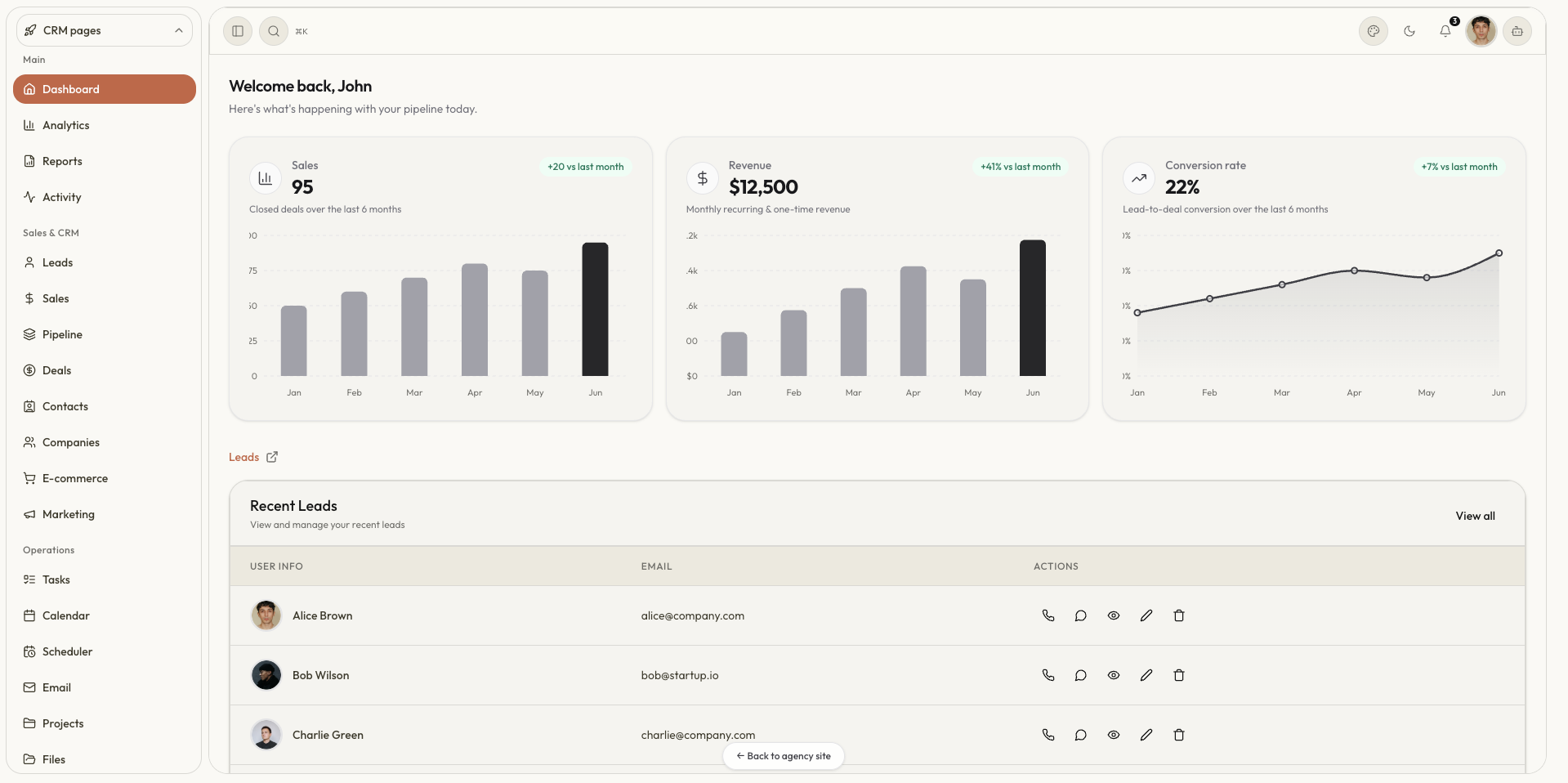
Do not import all of them into one “contacts” table. Identify the business meaning of each sheet first. The SaaSCRM live demo already separates leads, contacts, companies, deals, tasks, and invoices — use that shape as the target, not a flat export.
Find the owner of each field
Ask:
- Who creates this field?
- Who updates it?
- What does it control?
- Is it still needed?
- Should it be visible to everyone?
- Can it be calculated instead?
Many old columns exist only because someone once needed a temporary workaround.
How to clean the spreadsheet data
Standardize names
Convert variations such as:
- Acme Ltd
- ACME
- Acme Limited
into one canonical company record.
Normalize phone numbers
Store phone numbers in a consistent format, ideally with country codes. This matters when you later connect WhatsApp, calling, SMS, or deduplication rules.
Normalize dates
Do not mix:
- 12/08/26
- 2026-08-12
- Aug 12
- next Friday
Convert them into structured date fields.
Separate names
If you need personalization, separate:
- First name
- Last name
- Display name
Do not rely on parsing names after import if the spreadsheet contains inconsistent formats.
Deduplicate
A good deduplication key may combine:
- Phone
- Company domain
- External customer ID
Do not merge records automatically when the match is uncertain. Create a review queue for ambiguous duplicates.
Preserve the original
Keep a read-only copy of the original files with:
- Export date
- Owner
- Source filename
- Import batch ID
You may need it to verify a missing value or investigate a migration mistake.
The CRM data model to use
A basic custom CRM data migration should usually separate these entities.
Companies
Use for organizations, businesses, or accounts.
Suggested fields: Name, Website, Industry, Owner, Status, Source, Notes.
Contacts
Use for people connected to a company or opportunity.
Suggested fields: Name, Email, Phone, Role, Company, Consent status, Last activity.
Leads
Use for people or organizations that are not yet qualified.
Suggested fields: Source, Interest, Qualification status, Owner, Next follow-up date, Lead score.
Deals
Use for a revenue opportunity.
Suggested fields: Name, Company, Value, Stage, Probability, Expected close date, Owner.
Tasks and activities
Use for work that must happen.
Suggested fields: Related record, Type, Owner, Due date, Priority, Status.
Invoices or payments
Use only if finance activity is part of the workflow — the same pattern as our finance CRM for an Australian client.
Suggested fields: Customer, Amount, Issue date, Due date, Status, Payment date.
The relationship between these entities matters more than the field count. Browse the free CRM starters if you want a vertical already shaped around those records.
A practical migration workflow
Phase 1: Define the first version
Choose the smallest useful scope, such as:
- Companies
- Contacts
- Leads
- Deals
- Tasks
- Notes
Do not migrate every historical field in the first pass. Plan the page map in the AI Builder before you write import scripts — the same flow as plan your CRM in 2 minutes.
Phase 2: Build a field-mapping document
Create a table like:
| Spreadsheet column | CRM field | Transformation | Decision |
|---|---|---|---|
| Client Name | Company name | Deduplicate | Import |
| Sales Status | Deal stage | Map values | Convert |
| Next Call | Follow-up date | Normalize date | Import |
| Old Notes | Activity note | Review manually | Partial import |
| Potential | Deal value | Currency cleanup | Import |
This document becomes the contract between business users and developers.
Phase 3: Create controlled stages
Do not import inconsistent values such as:
- Hot
- Hot lead
- Very hot
- Warm maybe
- Follow up
- Call soon
Map them into a smaller controlled system:
- New
- Qualified
- Proposal sent
- Follow-up due
- Won
- Lost
Phase 4: Import a test batch
Start with 20–50 records.
Verify:
- Names
- Links between companies and contacts
- Ownership
- Dates
- Currency values
- Notes
- Duplicate behavior
- Permissions
Phase 5: Run a parallel period
For one or two weeks:
- Use the CRM for new activity
- Keep the spreadsheet read-only
- Compare counts
- Resolve missing records
- Fix confusing fields
- Train the team using real examples
Phase 6: Retire the spreadsheet carefully
Archive the original file. Do not delete it immediately. Keep a documented read-only copy and record the date the CRM became the operational source of truth.
What not to migrate
Some spreadsheet content should not become CRM data.
Avoid importing:
- Temporary calculations
- Personal opinions without context
- Passwords or API keys
- Unverified personal data
- Duplicate exports
- Obsolete marketing lists
- Sensitive data without a retention plan
- Fields nobody owns
A spreadsheet CRM migration is an opportunity to reduce data risk, not just preserve it.
How SaaSCRM can support spreadsheet-to-CRM migration
SaaSCRM’s homepage explicitly positions custom builds around importing spreadsheets, mapping columns to records, adding search and filters, and giving teams a structured workspace with roles and AI chat.
The template can provide the frontend foundation for:
- Lead and contact lists
- Company records
- Deal pipelines
- Search and filtering
- Activity timelines
- Tasks and calendar views
- Analytics and reports
- Invoices and payments
- Team and role surfaces
- AI-assisted record lookup
A realistic implementation could work like this:
- Upload an Excel or CSV file to a buyer-hosted backend.
- Preview detected columns.
- Let the user map spreadsheet fields to CRM entities.
- Show duplicate and invalid-row warnings.
- Import into a staging table.
- Require approval before publishing records.
- Display import history and rollback metadata.
- Redirect future work into the CRM.
SaaSCRM’s free AI CRM Builder can help define the required page map, backend plan, target, and modules before development. Its available module choices include leads, contacts, companies, deals, tasks, calendar, email, analytics, invoices, payments, projects, CMS, teams and roles, files, and developer tools.
The limitation is important: SaaSCRM is a frontend template, not a migration service or hosted database. Buyers still need to implement:
- File upload security
- Parsing and validation
- Import jobs
- Database transactions
- Duplicate resolution
- Permissions
- Audit logs
- Rollback behavior
- Data retention
- Production hosting
The developer resources provide API, OpenAPI, auth, webhook, and MCP guidance, but the buyer hosts the API and owns the production architecture.
When to use a template versus a custom migration build
Use the self-serve template when:
- You have developers
- Your spreadsheet structure is reasonably clean
- You can build the import workflow
- You only need a frontend foundation
- You want to own hosting and data
Consider a custom build when:
- Multiple spreadsheets must be merged
- The migration includes complex relationships
- You need role-based access
- You need data validation and rollback
- The CRM must combine migration with billing, projects, or CMS
- Your team needs deployment and handoff support
SaaSCRM’s pricing page separates the one-time template from custom CRM builds. The current listed template starts at $49, while custom builds start from $2,000 and can include custom modules, branding, API integration, auth, billing, multi-tenant requirements, deployment, and handoff documentation.
If you are comparing tools as a small studio, the best CRM for small businesses and startups write-up is the buying filter. This article is the migrate Excel spreadsheet to CRM playbook once you have chosen the stack.
FAQ
How do you migrate an Excel or Google Sheets CRM into a real CRM?
Audit sources, clean rows, map columns to companies / contacts / leads / deals, then import a small test batch. Keep the sheet read-only until counts match. Open the live CRM interface to see the target records.
What should I audit before an Excel to CRM migration?
Every Excel file, Google Sheet, CSV, and side list. Incomplete discovery is the usual failure, not the import button.
Can SaaSCRM import my spreadsheet?
The kit gives you the screens. You (or a custom build) still wire upload, mapping, and rollback. Start with the AI Builder, then pricing.
Template or custom CRM data migration?
Clean sheet + developers → template. Several sheets, roles, validation, or handoff → custom build from $2,000.
Bottom line
Before you migrate thousands of spreadsheet rows, create a field map and test the workflow with a small batch. Use the free SaaSCRM AI Builder to define the entities and screens first, then decide whether a self-serve template implementation or a custom CRM data migration is the safer route.
Next steps
- Explore the live CRM interface
- Plan the migration workflow
- Review template and custom-build options
- Read API and webhook resources
- Browse free CRM starters
See you on the other side of the spreadsheet.
— Shrey, creator of SaaSCRM.site